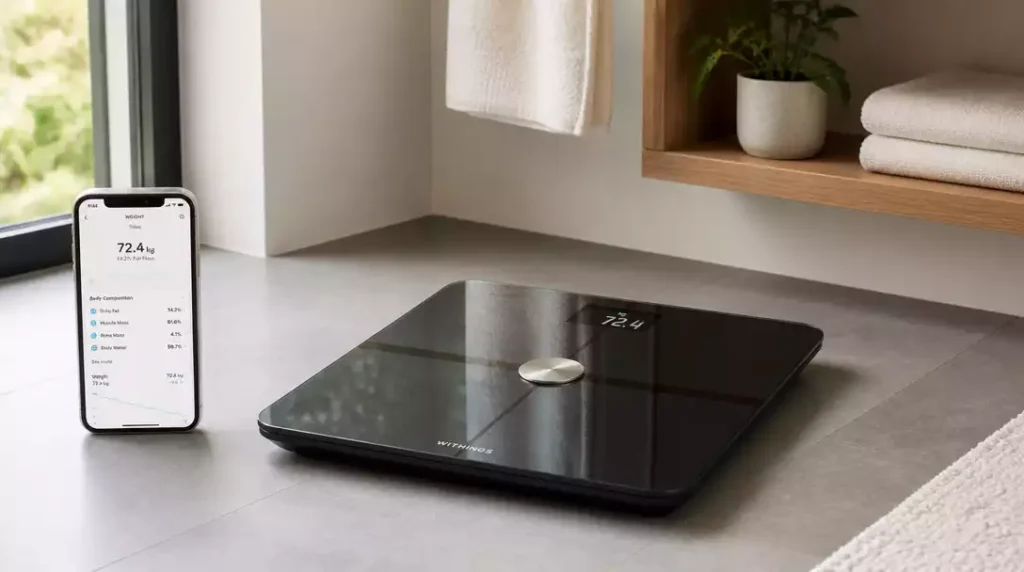
Is your Withings scale refusing to sync? You’re not alone! Many users encounter common issues that can disrupt their health tracking. Here’s how to troubleshoot effectively and get back on track.
What You Will Learn
- Key reasons for sync problems include Wi-Fi connectivity, low battery levels, and app configurations.
- Initial troubleshooting steps involve checking the app status, replacing batteries, and rebooting devices.
- Force syncing your scale requires verifying device connections, ensuring proper function of Wi-Fi and Bluetooth, and following specific syncing instructions.
- Engaging Withings customer support is recommended for persistent syncing issues.
- Regular updates to the Health Mate app and scale firmware are essential for optimal performance and bug fixes.
- Understanding body metrics beyond weight is crucial for effective health management and goal setting.
- Calibrating your scale accurately enhances data reliability and tracking precision.
- Integrating your Withings scale with other smart health devices creates a comprehensive health monitoring ecosystem.
Sync Issues with Your Withings Scale
Syncing problems can be frustrating, especially when you rely on your Withings scale for accurate health tracking. In this section, we’ll dive into some common reasons you might experience sync issues and how to troubleshoot them effectively.
Common Reasons for Sync Problems
When your Withings scale refuses to sync, there are a few typical culprits. Let’s look at the main reasons:
- Wi-Fi Connectivity: If your scale isn’t connected to a stable Wi-Fi network, it won’t be able to send data.
- Battery Levels: Low battery can hinder performance and lead to sync failure.
- App Configurations: Incorrect settings in the Health Mate app may prevent proper communication with your scale.
By understanding these issues, you can take proactive steps towards a solution. Regularly checking your Wi-Fi connection and ensuring your app settings are correct can save you time and hassle!
Initial Troubleshooting Steps for Immediate Syncing
If you find yourself in a bind with your Withings scale, here are the top three actions I recommend to get it syncing again:
- Check Device App Status: Make sure the Health Mate app is up to date and running smoothly.
- Replace Batteries: A simple battery change can often resolve syncing issues.
- Reboot Devices: Restart both your scale and your router to refresh the connection.
Taking these quick steps can often resolve the issue without extensive troubleshooting. It’s all about keeping things simple and efficient!
Pro Tip
Did you know? Regularly calibrating your Withings scale can significantly improve the accuracy of your measurements. Make it a habit to check the calibration every few months or whenever you notice discrepancies in your readings. This simple practice can help ensure that your health data remains reliable and informative!
Summarizing Your Steps to Force Sync the Withings Scale
To effectively troubleshoot and force sync your Withings scale, it’s essential to follow a structured approach. Here’s a quick summary of the steps we’ve covered:
- Verify the device connection in the Health Mate app.
- Check the battery level and replace batteries if necessary.
- Ensure your Wi-Fi and Bluetooth connections are functioning properly.
- Reboot both your scale and router.
- Follow device-specific syncing instructions for your model.
- Consider using Bluetooth if Wi-Fi is causing issues.
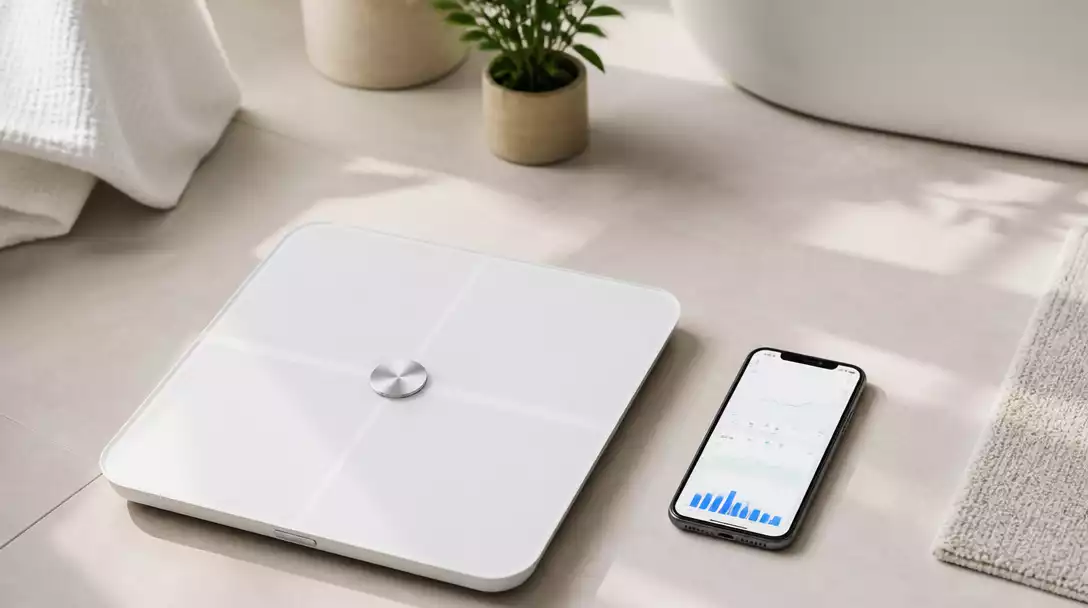
By following these steps, you can tackle most syncing problems effectively and get your scale back to working order in no time! For more general troubleshooting, learn how to fix a broken digital scale.
Encouragement to Engage with Customer Support for Persistent Issues
If you find that syncing issues persist despite following the troubleshooting steps, don’t hesitate to reach out to Withings customer support. Our team is always here to help you! You can contact them through the app or visit the Withings website. They can provide guidance tailored to your specific situation and help resolve any lingering issues.
Stay Updated: Regular App and Firmware Updates
Keeping your Health Mate app and scale firmware up-to-date is crucial for optimal performance. Updates often include bug fixes, new features, and improvements that enhance syncing capabilities. Here’s how to ensure you’re always current:
- Regularly check for updates in the app store.
- Enable automatic updates whenever possible.
- Check the Withings website for firmware updates for your scale.
Staying updated will not only prevent issues but also enhance your overall experience with your Withings scale! If you’re encountering issues with a different type of scale, you might find solutions in our guide on how to fix a spring scale.
The Role of Body Metrics in Effective Weight Tracking
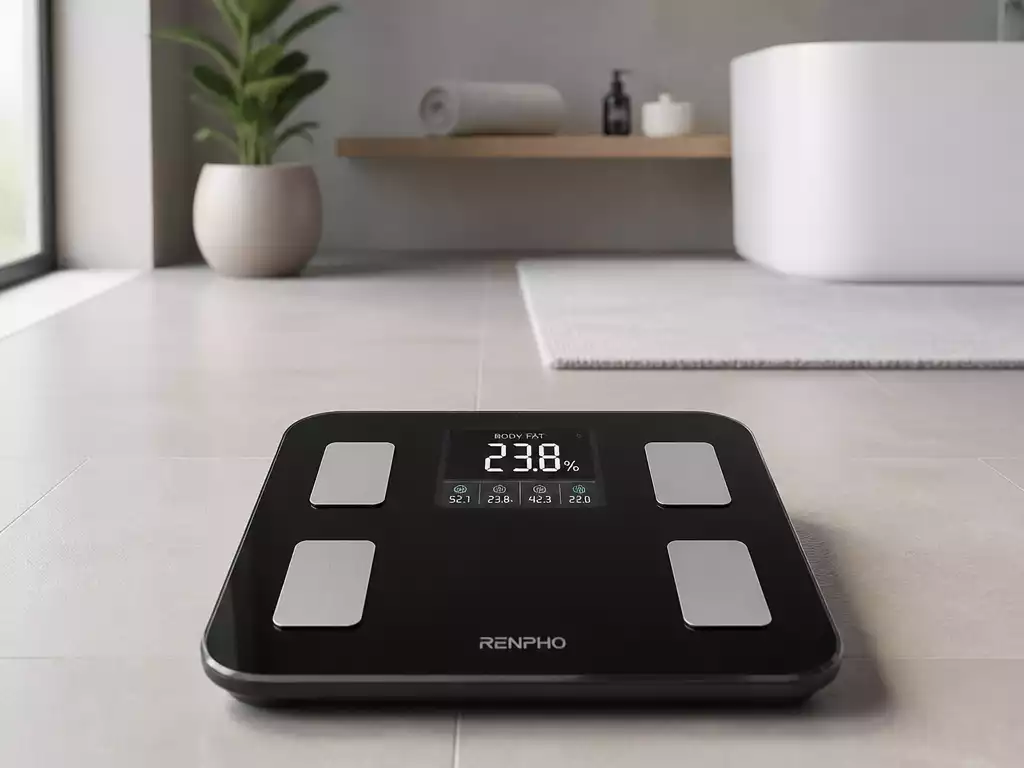
Your Withings scale measures more than just weight; it provides valuable insights into your body composition. Tracking metrics like body fat percentage, muscle mass, and water weight is essential for effective weight management. Here’s why monitoring these metrics matters:
- It helps set realistic health goals based on comprehensive data.
- Monitoring changes in body composition can motivate you to stay on track.
- Understanding your body metrics aids in tailoring fitness and nutrition plans.
Remember, it’s not just about the number on the scale; it’s about how you feel and the progress you’re making towards your health goals!
Understanding Scale Calibration and Its Impact on Data Accuracy
Calibrating your scale is vital for ensuring precise measurements. A well-calibrated scale provides more accurate data, leading to better tracking of your health metrics. Here are some steps to calibrate your Withings scale:
- Place the scale on a flat, hard surface.
- Follow the instructions in the Health Mate app for calibration.
- Recheck your weight after calibration to confirm accuracy.
Regular calibration can greatly enhance the reliability of your readings and, in turn, your overall health insights! For detailed instructions on calibrating other scales, refer to our article on how to calibrate a bathroom scale.
Enhancing Your User Experience with Smart Health Devices
Integrating your Withings scale with other smart health devices can significantly enhance your user experience. Imagine seamlessly tracking your activity levels, heart rate, and nutrition all in one place! Benefits of creating a connected health ecosystem include:
- Comprehensive health monitoring and insights.
- Simplified tracking of your progress over time.
- Personalized recommendations based on combined data.
By leveraging the full potential of your Withings scale alongside other devices, you’ll create a holistic approach to managing your health and wellness!
Frequently Asked Questions (FAQs)
- Q1: Why is my Withings scale not syncing?
- A1: Common reasons include Wi-Fi connectivity issues, low battery levels, and incorrect app configurations. Ensure your scale is connected to a stable Wi-Fi network, has sufficient battery, and that your Health Mate app settings are correct.
- Q2: What are the first steps I should take if my scale isn’t syncing?
- A2: Start by checking the Health Mate app status to ensure it’s updated, replace the batteries in your scale if they are low, and reboot both your scale and your router to refresh connections.
- Q3: How can I force my Withings scale to sync?
- A3: Verify the device connection in the Health Mate app, check battery levels, ensure Wi-Fi and Bluetooth are functioning, reboot devices, and follow any model-specific syncing instructions. You can also try using Bluetooth if Wi-Fi is problematic.
- Q4: When should I contact Withings customer support?
- A4: If syncing issues persist after you’ve followed all troubleshooting steps, it’s recommended to contact Withings customer support for personalized assistance.
- Q5: Why are app and firmware updates important for my Withings scale?
- A5: Regular updates for both the Health Mate app and your scale’s firmware include essential bug fixes, new features, and performance improvements that enhance syncing capabilities and overall user experience.
Recap of Key Points
- Common Sync Issues: Check for Wi-Fi connectivity, battery levels, and app configurations to resolve syncing problems.
- Initial Troubleshooting Steps: Update the Health Mate app, replace batteries, and reboot devices to restore functionality.
- Force Sync Steps: Verify device connection, check battery levels, ensure proper Wi-Fi/Bluetooth functionality, and follow specific syncing instructions.
- Engage Customer Support: Don’t hesitate to reach out to Withings support for persistent problems.
- Stay Updated: Regularly check for app and firmware updates to maintain optimal performance.
- Track Body Metrics: Monitor body composition metrics for a comprehensive understanding of health progress.
- Calibrate Your Scale: Regular calibration is crucial for accurate measurements and reliable health data.
- Integrate Smart Devices: Combine your Withings scale with other health devices for a more holistic health management experience.